When you first log in to the AmperWave Streaming console, you are on the Ad Management Dashboard. The Ad Management Dashboard can be broken down as follows:
Stations Not Inserting Ads
This area displays a list of any stations that are currently not inserting ads, excluding disabled stations or stations that have not injected for more than 90 days.
Field and Button definitions:
|
Item |
Description |
|
Station |
Station Name/Call letters |
|
Last recorded ad impression |
Date and time of last recorded impression reflected in the user's local time. |
|
|
Click this button to refresh the list. |
|
|
(First Page) Click this icon to return to the first page of the table. |
|
|
(Previous Page) Click this icon to view the previous page of the table. |
|
|
(Next Page) Click this icon to view the next page of the table. |
|
|
(Last Page) Click this icon to view the last page of the table. |
|
|
Click in the box, enter the page number you want to view, and press Enter to jump directly to that page. |
|
|
Use this drop-down menu to select how many items to view per page of the table. |


In-Stream Delivered by Priority
This area displays a graph indicating the number of in-stream ads delivered to users, sorted by priority.
Field and button definitions:
|
Field |
Description |
|
Plays |
This bar indicates the total number of plays delivered in the last 24 hours. Hover your pointer over part of the bar to view the number of plays of a particular type out of the total number of plays. |
|
Impressions |
This bar indicates the total number of impressions in the last 24 hours. Hover your pointer over part of the bar to view the number of impressions of a particular type out of the total number of impressions. |
|
|
Toggle these priority indicators to ad/remove them from the graph. |



Live Audience Graph, Trailing 24 Hours
This graph shows the number of people listening at different times.
Field and button definitions:
- Hover your pointer over the line to view the specifics of that point in time:

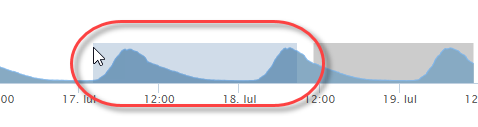
To change the period of time displayed, use your mouse to highlight a range on the lower part of the graph by clicking and dragging:
Campaigns Pending Approval
This field shows Campaigns that have been created and are awaiting approval.
Field and button definitions:
|
Field |
Description |
|
Campaign Name |
Campaign Name |
|
Dates |
Dates the Campaign is set to run, also known as Flight dates |
|
Required |
Required Impressions/Plays |
|
Target |
Revenue Goal |
|
Actions |
You can Approve or Disapprove the campaign by clicking on each word. This will open a popup window where you can leave notes if desired. |
|
|
Click this button to refresh the list. |
|
See all pending campaigns |
Click this link to view all Campaigns Pending Approval. |
Ads Missing Media
This table lists all individual ads that do not currently have media associated with them and therefore are not playing properly.
Field and button definitions:
|
Item |
Description |
|
Campaign Name |
Campaign Name |
|
Ad/Banner Name |
Name of individual Ad or banner that is missing media, |
|
Dates |
Dates the Ad/banner is set to run, also known as Flight dates |
|
Required |
Required impressions/plays. |
|
|
Click this button to refresh the list. |
|
See all campaigns missing media |
Click this link to view the Campaigns Missing Media screen. |
For more information, see: