The Advertiser Affidavit Report is ran through the Ad Statistics report page. This is found under the Ad Management tab under the Reports sub-tab
To run an Advertiser Affidavit report:
In Date Range, select a date range.
There are several Parameters to choose from to customize your report.
-
In Select Stations, click on a station to move it to the Selected Sections column. By default all stations are selected.
- You can bulk select stations using the Market, Language, Format and Band filters. Clicking the double arrow buttons moves your selected stations to and from the Available Stations and Selected Stations lists.
- In Select Advertiser, select an advertiser.
- All Campaigns for the selected Advertiser will be included. For an Ad Statistics report on an individual campaign see Generating an Ad Statistics Report
- In Select Revenue Detail, select Excluded or Included.
-
In Include Creative Details, select Excluded or Included.
Note: The Include Creative Details option applies only to the Detailed Affidavit and Line Item Reports.
-
In Select how to show Ad Performance Metrics, if you are running a Summary Affidavit report, select either "Based on Ad Settings" which will display Impressions or Plays based on the campaign OR select "Show Both Performance Metrics" which will display both Impressions and Plays for In-Stream ads.
Note: Gateway Ads and Banner Ads will only display the Impressions column.
- To finish, click Generate Report. The results will display below. You can also download your results in Excel format by clicking on one of the Export Report buttons. Note: The Summary Affidavit report can also be exported as a PDF.
Exporting the Advertiser Affidavit Results
To export an Advertiser Affidavit report:
- Click either Summary Affidavit, Detailed Affidavit, Expanded Detailed Affidavit, or Line Item Report.
The format menu appears. - Select either Export to Excel or for the Summary report Export to PDF.
The Generate dialog appears. - Assign a name for the file.
- Click Generate.
Once complete a dialog box will appear that allows you to download the report.
If you export your report it can also be found in the Reports > History page.
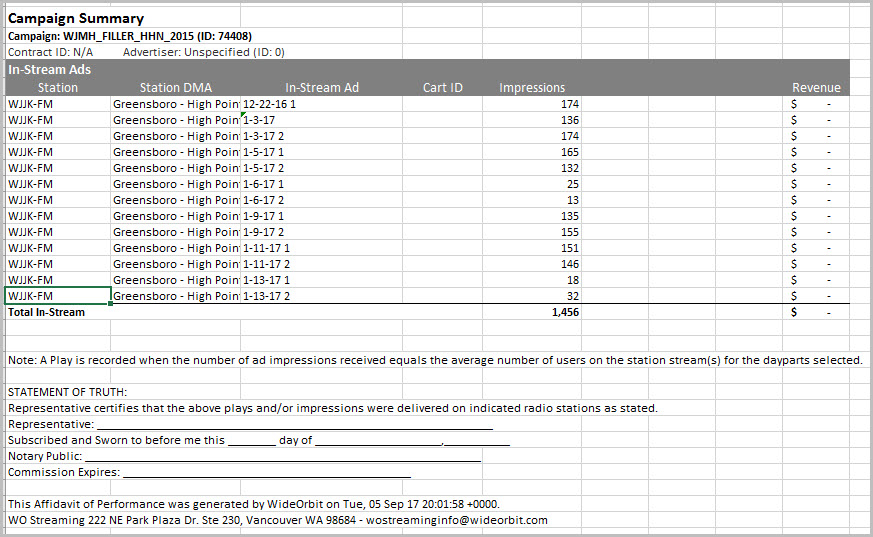
Summary Report Results
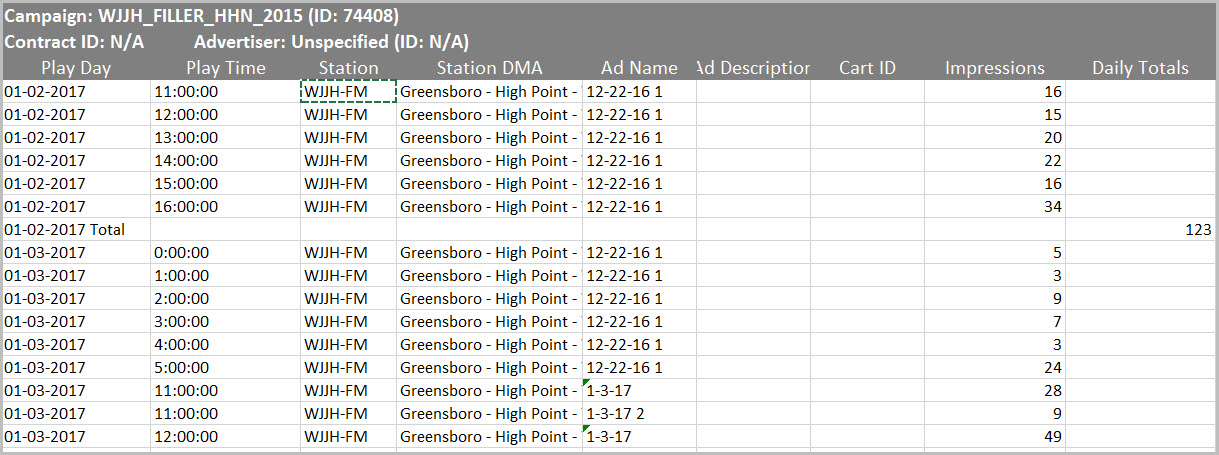
Detailed Affidavit Report
For more information, see: